
Views: 222 Author: Tina Publish Time: 2025-04-19 Origin: Site


Content Menu
● Understanding the Problem with Cordless Phone LCD Displays
>> Step 1: Disassemble the Cordless Phone
>> Step 2: Inspect the LCD Ribbon Cable Connection
>> Step 3: Clean the Ribbon Cable Contacts
>> Step 6: Reassemble the Phone
● Common Problems and Their Solutions
● Frequently Asked Questions (FAQs)
>> 1. How long does it take to repair an LCD display on a cordless phone?
>> 2. Can I repair a cracked LCD screen without replacing it?
>> 3. What tools do I need for repairing a cordless phone LCD?
>> 4. Is it safe to use a soldering iron on the LCD ribbon cable?
>> 5. When should I seek professional help for LCD repair?
Cordless phones are still widely used in homes and offices, but their LCD displays can develop issues over time, such as missing pixels, dead segments, or complete display failure. Repairing these LCD displays can save you money and extend the life of your device. This detailed guide will walk you through the process of diagnosing and repairing an LCD display on a cordless phone, complete with practical tips, images, and videos to assist you.
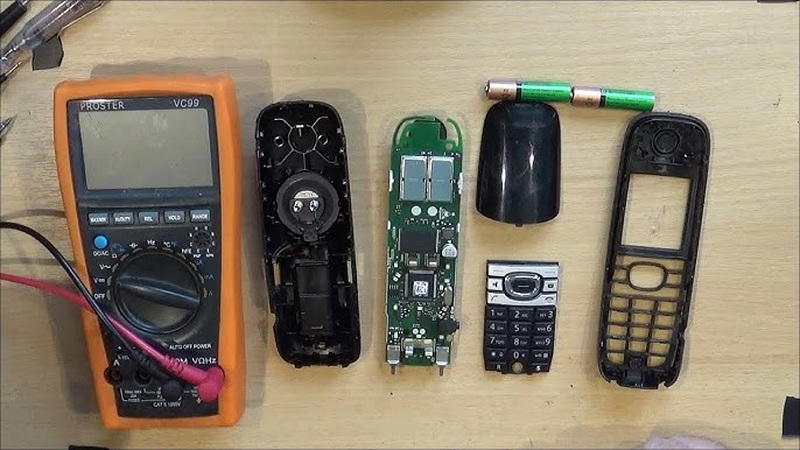
LCD displays on cordless phones often fail due to issues with the ribbon cable connection between the LCD panel and the phone's mainboard. This connection can deteriorate over time due to poor manufacturing, adhesive failure, or mechanical stress, leading to missing pixels or segments on the screen. Common symptoms include:
- Missing or faded segments on the LCD
- Dead rows or columns of pixels
- Flickering or blank screens
These issues are usually not caused by the LCD panel itself but by the connection interface, which means the screen can often be repaired without full replacement[1][2][3][8].
Before beginning the repair, gather the following tools:
- Precision screwdriver set (to open the phone casing)
- Heat source: hot air gun or a powerful hair dryer (to soften adhesive)
- Pencil eraser or plastic spudger (for cleaning and pressing connections)
- Soldering iron (optional, for reflowing solder joints)
- Tweezers or clamps (to hold parts in place during repair)
- Isopropyl alcohol and microfiber cloth (for cleaning)
- Replacement LCD screen (only if repair fails or screen is cracked)
1. Remove the battery cover and batteries.
2. Unscrew the screws holding the phone casing together, typically located on the back or bottom.
3. Carefully open the casing to expose the internal components, including the LCD screen and ribbon cable.
4. Take pictures during disassembly to help with reassembly.
- Locate the ribbon cable connecting the LCD to the mainboard.
- Look for signs of adhesive failure, peeling, or corrosion.
- Gently press on the cable to see if the display changes or improves.
- If the display improves when pressing, the connection is likely loose or oxidized.
- Use isopropyl alcohol and a microfiber cloth or pencil eraser to clean the contacts on the ribbon cable and the PCB.
- Remove any dust, corrosion, or adhesive residue carefully.
- Be gentle to avoid damaging the delicate contacts.
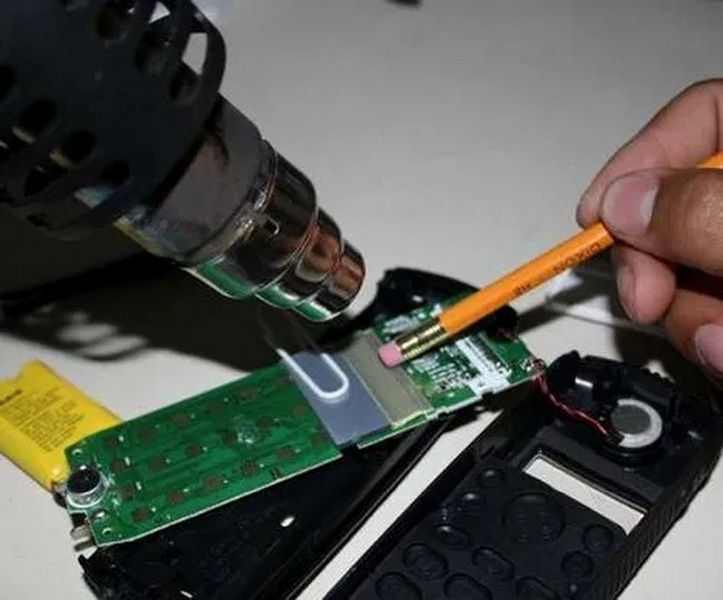
- Use a hot air gun or a soldering iron with a broad tip set to about 200°C (392°F) to gently heat the ribbon cable connection area.
- The goal is to soften the adhesive and reflow the solder joints without melting the cable or damaging the LCD.
- While heating, gently press the ribbon cable to ensure a solid connection.
- Avoid overheating to prevent further damage.
- Power on the phone while still open to check if the display segments return.
- If some pixels or segments remain missing, repeat the heating and pressing process.
- If the display fully recovers, proceed to reassemble the phone.
- Carefully place the LCD and ribbon cable back into their original positions.
- Screw the casing back together.
- Replace the batteries and test the phone again to ensure the display works correctly.
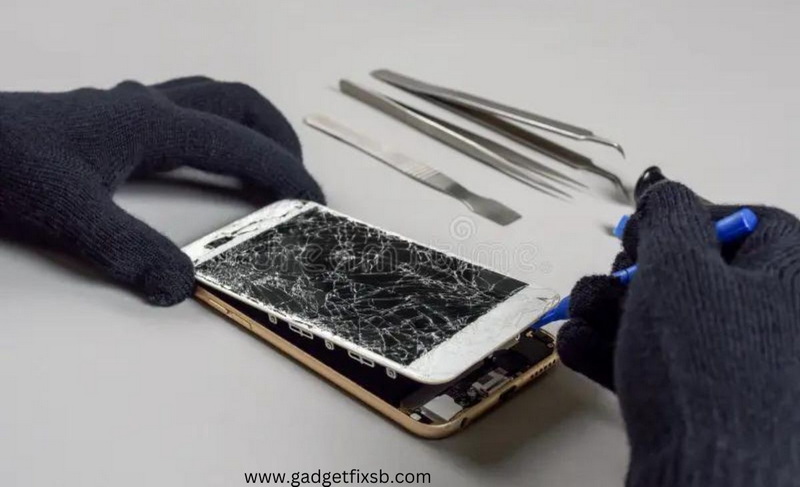
- If the ribbon cable is severely damaged, consider replacing it or the entire LCD screen.
- Use clamps or tape to hold the ribbon cable firmly in place while heating.
- Avoid using excessive heat or pressure, which can cause permanent damage.
- For minor screen scratches or dead pixels, some users report temporary fixes using gentle pressure or software pixel cycling, but these are less reliable[4].
| Problem | Cause | Solution |
|---|---|---|
| Missing segments on LCD | Loose ribbon cable connection | Reflow solder, clean contacts |
| Dead pixels or rows | Ribbon cable or solder failure | Heat and press connections |
| Flickering or dim display | Backlight or power issues | Check power supply, replace backlight |
| Cracked LCD glass | Physical damage | Replace LCD screen |
| No display at all | Faulty ribbon cable or LCD | Inspect and replace if necessary |
Repairing the LCD display on a cordless phone is often a straightforward process that can save you the cost of a new handset. Most display issues stem from deteriorated ribbon cable connections, which can be fixed by carefully cleaning, reheating, and reflowing the connections. With basic tools and patience, you can restore your phone's display functionality in under an hour. However, if the LCD itself is cracked or the damage extensive, replacing the screen or consulting a professional may be necessary.
Typically, the repair process, including disassembly and reassembly, takes about 30 minutes to an hour depending on your experience[2][7].
Minor cracks might be temporarily masked using screen repair kits or adhesives, but a cracked LCD generally requires replacement for full functionality[4].
You need precision screwdrivers, a heat source (hot air gun or hair dryer), a pencil eraser or plastic tool, and optionally a soldering iron for reflowing solder joints[2][7].
Yes, but only at low temperatures (around 200°C) and with a broad tip to avoid damaging the cable or LCD panel[1][7].
If the damage is extensive, the LCD is cracked, or you are uncomfortable performing delicate repairs yourself, professional repair services are recommended[4][5].
[1] https://www.youtube.com/watch?v=CWeX124kuqY
[2] https://www.instructables.com/Repair-a-Malfunctioning-LCD/
[3] https://www.youtube.com/watch?v=uPB_85iFdgc
[4] https://www.reshine-display.com/can-you-fix-a-lcd-screen-without-replacing-it.html
[5] https://www.carlcare.in/in/tips-detail/broken-phone-screen-repair/
[6] https://www.ifixit.com/Guide/Panasonic+KX-TG6641+Handset+Display+Screen+Replacement/123847
[7] https://hackaday.com/2009/06/20/repair-a-malfunctioning-lcd/
[8] https://www.youtube.com/watch?v=mUz_mt-GClw
[9] http://www.kimeery.com/how-to-repair-a-broken-lcd-screen-phone-1.html
[10] https://www.youtube.com/watch?v=EFZCDjQlXWc
[11] https://www.youtube.com/watch?v=ncrqMBP6GrA
[12] https://www.diyfixtool.com/blogs/news/master-professional-tools-to-easily-repair-phone-screens
[13] https://maker.pro/forums/threads/how-to-repair-home-phone-lcd-fading-missing-numbers.285248/
[14] http://www.kimeery.com/how-to-replace-a-broken-mobile-phone-lcd-screen.html
[15] https://www.youtube.com/watch?v=SkQtT4qaSvo
[16] https://www.youtube.com/watch?v=uPB_85iFdgc
[17] https://www.youtube.com/watch?v=7VI8L9NPI4E
[18] https://www.youtube.com/watch?v=oCKCGFnGdm0
[19] https://www.youtube.com/watch?v=dPgWtRM2gUg
[20] https://www.shutterstock.com/search/lcd-replacement
[21] https://www.shutterstock.com/search/lcd-repair
[22] https://www.youtube.com/watch?v=4afCmfBzOTk
[23] https://www.youtube.com/watch?v=WeGL7W56WjA
[24] https://www.youtube.com/watch?v=LEj0erQss4k
[25] https://www.youtube.com/watch?v=6kNNGNAQtZA
[26] https://www.youtube.com/watch?v=t5OVDojBqYI
[27] https://www.linkedin.com/pulse/10-common-lcd-oled-tft-display-questions-sigoc
[28] https://www.vtechphones.com/support/basic-troubleshooting-tips/my-phone-is-not-working-properly-do-you-think-purchasing-a-replacement-batterys-might-fix-the-problem
[29] https://thelabrepair.com/about/faqs/
[30] https://telephones.att.com/product-support/faqs/symptom/1591/71
[31] https://www.philips.co.uk/c-p/D1502B_05/cordless-phone/support
[32] https://help.na.panasonic.com/answers/troubleshooting-the-screen-is-blank-on-my-handset/
[33] https://telephones.att.com/product-support/faqs/symptom/378/354
[34] https://www.youtube.com/watch?v=CWeX124kuqY
[35] https://www.electronicsrepairfaq.com/tag/cordless-phone-repair
[36] https://sundance-communications.com/forum/ubbthreads.php/topics/224866/cordless-phone-answering-machine-handset-display-blank
[37] https://www.youtube.com/watch?v=JazkpEC7xRw
[38] https://windowhardwaredirect.com/blogs/news/a-step-by-step-guide-on-how-to-repair-a-screen-like-a-pro
[39] https://www.oriwhiz.com/blogs/cellphone-repair-parts-gudie/step-by-step-guide-to-your-broken-phone-screen-replacement
[40] https://www.youtube.com/watch?v=mUz_mt-GClw
[41] https://electronics.stackexchange.com/questions/390946/partially-broken-lcd-missing-segments
[42] https://www.orientdisplay.com/how-to-fix-lcd-display-problems/
[43] https://www.carlcare.com/ke/tips-detail/dos-and-donts-of-mobile-screen-replacement/
[44] https://forum.allaboutcircuits.com/threads/cordless-phone-dim-display-issue.140121/
[45] https://xdaforums.com/t/is-it-diffficult-to-replace-whole-lcd-screen.3680048/


