

Views: 222 Author: Tina Publish Time: 2025-04-05 Origin: Site


Content Menu
● Introduction to Scrolling Text on LCD with Arduino
● Using the LiquidCrystal Library
● Advanced Features and Applications
● Troubleshooting Common Issues
>> 1. What is the LiquidCrystal Library Used For?
>> 2. How Do I Connect an LCD to Arduino?
>> 3. What is the Difference Between a Standard LCD and an I2C LCD Module?
>> 4. How Can I Adjust the Scrolling Speed of Text on an LCD?
>> 5. Can I Use Custom Scrolling Techniques Instead of Built-in Functions?
Scrolling text on an LCD display using Arduino is a fascinating project that can enhance the visual appeal of various applications, from simple displays to complex interactive systems. This article will guide you through the process of setting up an LCD display with Arduino, understanding thenecessary components, and implementing scrolling text functionality.
To start this project, you will need the following components:
- Arduino Board: This is the brain of your project, responsible for processing and executing instructions. Commonly used boards include Arduino Uno, Arduino Mega, and Arduino Nano.
- LCD Display: Typically, a 16x2 LCD is used, but you can also use other sizes like 16x4 or 20x4. Ensure it is compatible with the Hitachi HD44780 driver.
- 10k Potentiometer: Used for adjusting the contrast of the LCD display. This is crucial for optimizing the visibility of the text.
- 220 Ohm Resistor: For powering the backlight of the LCD. This resistor helps control the current flowing to the backlight.
- Hook-up Wires and Breadboard: For connecting components. These are essential for creating a temporary circuit setup.
- I2C Converter Module (Optional): If you prefer a simpler connection setup, using an I2C module can reduce the number of wires needed.
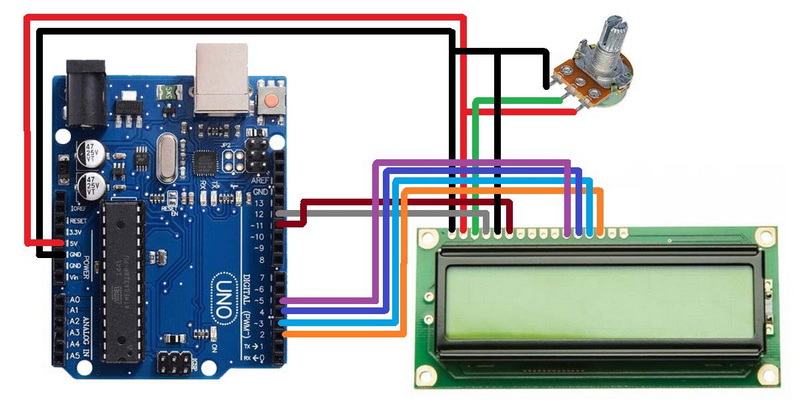
The circuit setup involves connecting the LCD pins to the Arduino board. Here's a basic outline:
1. RS Pin to Arduino's digital pin 12.
2. Enable Pin to Arduino's digital pin 11.
3. D4, D5, D6, D7 Pins to Arduino's digital pins 5, 4, 3, and 2 respectively.
4. 10k Potentiometer connected to +5V and GND, with its wiper to the LCD's VO pin.
5. 220 Ohm Resistor for backlight power.
For a more detailed circuit diagram, you can refer to tutorials like the one on Arduino's official website.

The LiquidCrystal library is essential for controlling LCD displays with Arduino. It provides functions like `scrollDisplayLeft()` and `scrollDisplayRight()` to scroll text across the screen.
To scroll text, you can use the `scrollDisplayLeft()` or `scrollDisplayRight()` functions. Here's a brief overview of how it works:
1. Initialize the LCD: Use `lcd.begin(16, 2)` to set up a 16x2 LCD.
2. Print Initial Text: Use `lcd.print("Hello World!")` to display text.
3. Scroll Text: Call `scrollDisplayLeft()` or `scrollDisplayRight()` in a loop with a delay to create the scrolling effect.
If you prefer a simpler setup, you can use an I2C LCD module. This reduces the number of wires needed, making the project more compact.
- Arduino Board
- I2C LCD Module (which includes the LCD display and I2C converter)
- Jumper Wires
1. Connect the I2C module's SCL pin to Arduino's SCL pin.
2. Connect the I2C module's SDA pin to Arduino's SDA pin.
3. Power the module with VCC and GND.
Using an I2C module simplifies the wiring process and makes the project more manageable, especially when working with limited space or multiple components.
Besides using built-in scrolling functions, you can create custom scrolling effects by manually shifting characters across the display. This involves printing characters one by one and moving them across the screen using a loop.
1. Store Text in an Array: Store the text you want to scroll in a character array.
2. Print Characters: Use a loop to print each character of the text on the LCD.
3. Shift Characters: After printing all characters, shift them one position to the left or right to create the scrolling effect.
Custom scrolling allows for more control over the scrolling behavior, enabling you to implement unique visual effects.
Scrolling text on an LCD can be integrated into various projects, such as:
- Interactive Displays: Use scrolling text to display information in interactive kiosks or public displays.
- Robotics: Implement scrolling text to display status messages or commands in robotic systems.
- Home Automation: Use scrolling text to display temperature, humidity, or other environmental data in home automation systems.
These applications highlight the versatility of scrolling text displays in enhancing user interaction and visual feedback.
When working with LCD displays, you might encounter issues such as:
- Text Not Displaying: Check if the contrast is properly adjusted and if the backlight is working.
- Incorrect Scrolling: Ensure that the scrolling function is called correctly within a loop.
Troubleshooting these issues can help you refine your project and ensure it operates smoothly.
Implementing scrolling text on an LCD display with Arduino is a fun and educational project. It enhances your understanding of both hardware and software aspects of Arduino programming. Whether you use a standard LCD or an I2C module, the LiquidCrystal library provides the necessary tools to create engaging visual effects. By exploring custom scrolling techniques and integrating this technology into various applications, you can unlock a wide range of creative possibilities.

The LiquidCrystal library is used to control LCD displays compatible with the Hitachi HD44780 driver. It provides functions for printing text, setting the cursor position, and scrolling text across the display.
To connect an LCD to Arduino, you need to link the LCD's RS, Enable, D4, D5, D6, and D7 pins to Arduino's digital pins. Additionally, connect a 10k potentiometer for contrast adjustment and a 220 ohm resistor for backlight power.
A standard LCD requires more wires to connect to Arduino, while an I2C LCD module simplifies the connection by using only SCL and SDA wires, making it more compact and easier to set up.
You can adjust the scrolling speed by modifying the delay time between each scroll operation. A shorter delay results in faster scrolling, while a longer delay slows it down.
Yes, you can create custom scrolling effects by manually shifting characters across the display using loops. This allows for more control over the scrolling behavior.
[1] https://www.arduino.cc/en/Tutorial/LibraryExamples/LiquidCrystalScroll/
[2] https://howtomechatronics.com/tutorials/arduino/lcd-tutorial/
[3] https://steemit.com/utopian-io/@pakganern/iic-lcd-scrolling-text-with-arduino-tutorial
[4] https://www.youtube.com/watch?v=m6VLpSIyIt8
[5] https://www.youtube.com/watch?v=L26FNz1FNvA
[6] https://www.engineersgarage.com/moving-text-on-16x2-lcd-with-arduino/
[7] https://docs.arduino.cc/learn/electronics/lcd-displays/
[8] https://www.youtube.com/watch?v=G1CLY90RQBs
[9] https://www.theengineeringprojects.com/2017/05/scrolling-text-lcd-arduino.html
[10] https://forum.arduino.cc/t/16x2-lcd-one-line-scrolling-one-stationary/406501
[11] https://forum.arduino.cc/t/lcd-scroll-text/210755
[12] https://www.youtube.com/watch?v=7SjPg9GkCJo
[13] https://forum.arduino.cc/t/lcd-vertical-scrolling/81378
[14] https://www.youtube.com/watch?v=oWfRChp_UCI
[15] https://www.youtube.com/watch?v=--duFzywaCU
[16] https://www.youtube.com/watch?v=YqjO4A81Wos
[17] https://www.instructables.com/DIY-Arduino-scrolling-LCD-text-shield/
[18] https://www.youtube.com/watch?v=Q1iVtLQOZOI
[19] https://www.pinterest.com/pin/427912402077921901/
[20] https://www.youtube.com/watch?v=CJQGS5D8kl0
[21] https://www.youtube.com/watch?v=tbGuXnqwYWU
[22] https://www.youtube.com/watch?v=vUmIGp8zilQ
[23] https://www.youtube.com/watch?v=Q58mQFwWv7c
[24] https://www.youtube.com/watch?v=zbdBserL9jg
[25] https://forum.arduino.cc/t/scroll-a-text-on-lcd-16x1/509060
[26] https://www.arduino.cc/en/Tutorial/LibraryExamples/LiquidCrystalAutoscroll/
[27] https://www.instructables.com/Color-Scrolling-LED-Text-and-Images-With-Arduino/


