
Views: 222 Author: Tina Publish Time: 2025-06-18 Origin: Site


Content Menu
● Understanding the Apple Cinema Display Series
>> Key Features Across the Series
● Locating the LCD Cinema Display Monitor Camera
● Technical Specifications of the Cinema Display Camera
● How to Use the LCD Cinema Display Camera
● Troubleshooting: When the Camera Isn't Detected
>> Common Issues and Solutions
● Advanced Tips for Cinema Display Camera Users
>> Upgrading or Replacing the Camera
● Cinema Display Camera in Professional Settings
● Security and Privacy Considerations
● Additional Insights: The Evolution of Display Cameras
>> 1. Where exactly is the camera on my LCD Cinema Display?
>> 2. Does every Apple Cinema Display have a built-in camera?
>> 3. How do I activate the Cinema Display camera on my Mac?
>> 4. Why isn't my Cinema Display camera working?
>> 5. Can I upgrade or replace the built-in camera?
The Apple Cinema Display series has long been a favorite among creative professionals and tech enthusiasts, renowned for its sleek design, vibrant color accuracy, and integrated multimedia features. Among its standout elements is the built-in camera, a feature that has prompted frequent questions from users: Where is the LCD Cinema Display monitor camera? This article delves deeply into the camera's location, technical aspects, usage scenarios, and troubleshooting tips. Along the way, you'll find illustrative images, demonstration videos, and a detailed FAQ section to ensure you master every aspect of your Cinema Display's camera functionality.
The Apple Cinema Display line includes several models, notably the 24-inch, 27-inch, and 30-inch versions. Each is designed with a focus on aesthetics, performance, and seamless integration with Apple devices.
- High-resolution LCD panels with IPS technology
- Integrated speakers and microphones
- Built-in iSight camera (on select models)
- Mini DisplayPort or DVI connectivity
- Aluminum and glass construction for durability and style
The built-in camera on the Apple Cinema Display is subtly integrated into the upper bezel of the monitor, centered above the screen. This placement is intentional, mirroring the camera location on MacBook and iMac devices, ensuring a natural angle for video calls and facial recognition.
The camera is a small, unobtrusive lens, often flush with the bezel, accompanied by a tiny pinhole microphone usually adjacent to it. This design maintains the sleek, minimalist look Apple is known for, while providing essential video and audio functionality.
The camera integrated into the Cinema Display is an Apple iSight camera, which offers standard-definition video quality suitable for video conferencing and basic photography needs. It connects through the display's USB interface, allowing macOS and compatible software to access both the camera and microphone seamlessly.
- 24-inch LED Cinema Display: Includes an integrated iSight camera, microphone, and speakers.
- 27-inch LED Cinema Display: Also features the built-in iSight camera and audio components.
- 30-inch Cinema HD Display: Does not include a built-in camera; users must connect an external webcam if needed.
To use the camera, you need to connect both the video and USB cables from the Cinema Display to your Mac. The video cable (Mini DisplayPort or DVI) handles the screen image, while the USB cable enables the camera and microphone functions.
Once connected, power on your display and Mac. The system should automatically detect the camera as a video input device.
Open any video-enabled application such as FaceTime, Zoom, or Photo Booth. Within the app's settings, select the Cinema Display camera as your video input and the built-in microphone as your audio input. The camera activates automatically when accessed by software, with no manual on/off switch on the display itself.
- USB Not Connected: The camera requires the USB cable connection to your Mac. Without it, the camera will not function.
- Software Compatibility: Some third-party or outdated apps may not recognize the Cinema Display camera. Updating software or switching to a compatible app often resolves this.
- System Permissions: macOS requires apps to have permission to use the camera. Check System Preferences under Security & Privacy to ensure the app has access.
- Hardware Reset: Unplugging and reconnecting the display or restarting your Mac can help refresh device detection.
Though the Cinema Display camera is not designed for professional video recording, you can enhance your video calls by optimizing your environment:
- Use soft, frontal lighting to avoid harsh shadows.
- Position your chair and monitor so your eyes align naturally with the camera lens.
- Maintain a clean, uncluttered background for a professional appearance.
The built-in camera is fixed and not user-replaceable. For users requiring higher video quality or additional features, an external webcam connected directly to the Mac offers a better solution, while the Cinema Display continues to serve as a high-quality monitor.
The Cinema Display camera is well-suited for remote meetings, online teaching, and virtual collaboration. Its integration with macOS ensures smooth operation with popular conferencing apps, providing clear video and audio for everyday communication.
While not intended for high-end video production, the camera can be used for casual vlogging, streaming, or recording short videos. Its simplicity and ease of use make it a convenient tool for content creators who prioritize workflow efficiency over ultra-high resolution.
Apple's Cinema Display camera does not have a physical indicator light to show when it is active, unlike some other webcams. Users should be mindful of which applications have camera access and consider using software settings to restrict permissions.
For added peace of mind, physical privacy covers are available that can be placed over the camera lens when not in use, preventing any possibility of unauthorized video capture.
The integration of cameras into monitors like the Apple Cinema Display reflects the growing demand for seamless video communication. Early external webcams were bulky and required separate setup, but built-in cameras provide a cleaner, more integrated experience.
Apple's design philosophy emphasizes minimalism and functionality, which is why the Cinema Display camera is discreetly embedded without compromising the monitor's sleek profile. This trend continues in modern displays and laptops, where camera placement and quality remain critical design considerations.
The camera on the Apple LCD Cinema Display is a thoughtfully integrated feature, centered at the top bezel of the monitor. It provides convenient video and audio capabilities for a range of professional and personal uses. By understanding its location, connection requirements, and usage tips, you can maximize the value of your Cinema Display and enhance your digital communication experience.
Whether you're joining video conferences, creating content, or simply chatting with friends and family, the Cinema Display camera offers reliable performance in a stylish package. For users needing higher video quality, external webcams remain a practical option, but for everyday use, the built-in camera is more than sufficient.
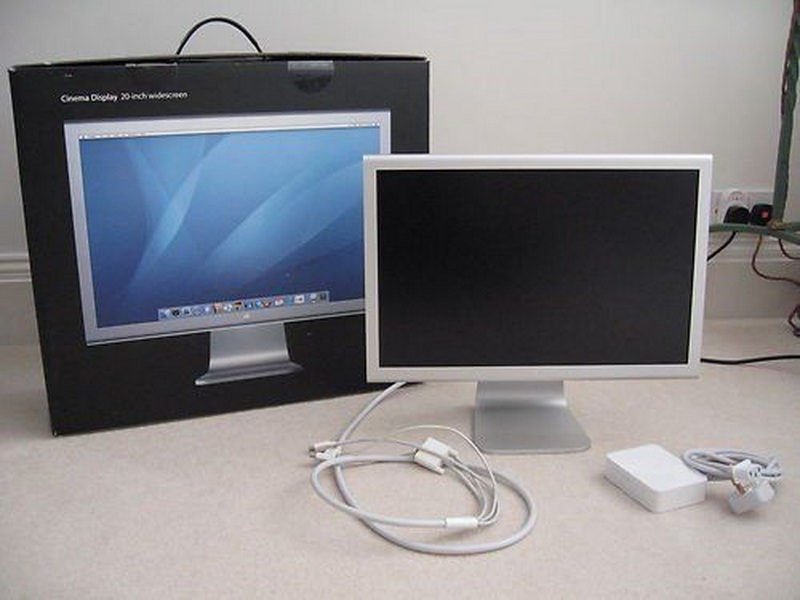
The camera is centered on the upper bezel of the monitor, directly above the display screen. It is a small, circular lens integrated into the frame for a seamless look.
No. Only the 24-inch and 27-inch LED Cinema Display models include the built-in iSight camera. The 30-inch Cinema HD Display does not have a camera.
Simply connect the display's USB cable to your Mac. Open a camera-enabled app like FaceTime or Zoom, and select the Cinema Display camera as your input source.
Common reasons include a disconnected USB cable, lack of app permissions, or software incompatibility. Check your connections and system settings, and restart your Mac if necessary.
The built-in camera is not user-upgradable. For higher video quality, connect an external webcam to your Mac and use the Cinema Display as your monitor.


