

Views: 222 Author: Tina Publish Time: 2025-06-17 Origin: Site


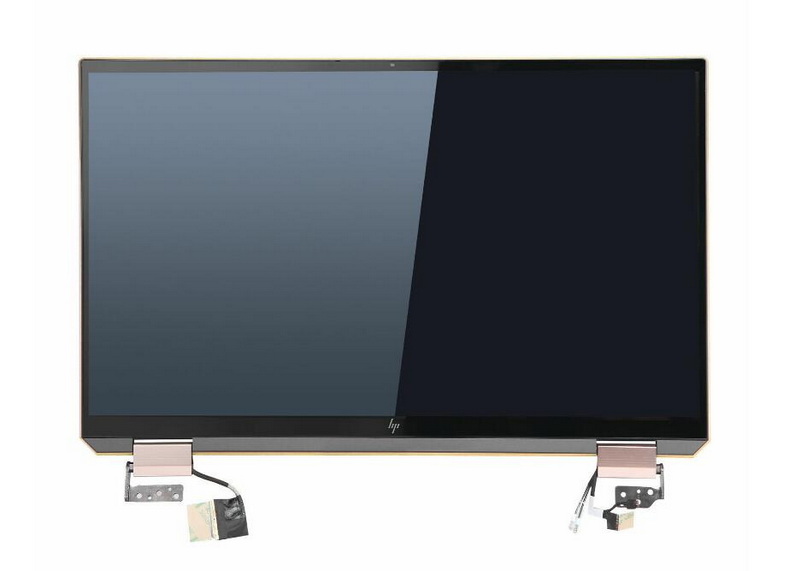
Content Menu
● Why Does OLED Matter for HP Spectre?
● Visual Differences: OLED vs. IPS LCD
● Step-by-Step: How to Check if Your Spectre Has an OLED Screen
>> Step 1: Check Official Product Specifications
>> Step 2: Use System Information on Windows
>> Step 3: Visual Inspection with Test Images
>> Step 4: Use Third-Party Diagnostic Tools
>> Step 5: Look for Physical Labels or Stickers
● Using System Information and Official Specs
● Third-Party Tools and Diagnostic Apps
● Real-World Tests and Visual Demos
>> Test 2: Color Gradient Test
● Troubleshooting: When Specs Are Unclear
● Additional Tips for OLED Care and Usage
● FAQ
>> 1. How do I know if my HP Spectre has an OLED screen?
>> 2. Can I upgrade my Spectre screen to OLED?
>> 3. Are OLED screens better for eye health?
>> 4. Do OLED screens suffer from burn-in?
>> 5. Why do some HP Spectre models have both IPS and OLED options?
Choosing the right display technology can dramatically affect your laptop experience, especially with premium devices like the HP Spectre series. Many users want to know: how to tell if screen is OLED Spectre? This detailed guide will help you confidently identify whether your HP Spectre features an OLED screen, using visual cues, software tools, and official specifications. Along the way, you'll find illustrative explanations, real-world tests, and answers to common questions.
OLED stands for Organic Light Emitting Diode. Unlike traditional LCDs, each pixel in an OLED display emits its own light, allowing for:
- True blacks (pixels can turn off completely)
- High contrast ratios
- Vivid, saturated colors
- Faster response times
OLED technology is increasingly popular in high-end laptops, including select HP Spectre models. This technology differs fundamentally from LCDs, which require a backlight that shines through liquid crystals to produce images.
The HP Spectre series is known for its premium build and display quality. An OLED screen can significantly enhance your experience by offering:
- Deeper blacks and higher contrast for movies and games
- More accurate and vibrant colors for creative work such as photo and video editing
- Reduced eye strain due to lower blue light emission and flicker-free technology
- Faster refresh rates and better motion clarity, beneficial for gaming and fast-paced videos
However, not all Spectre models come with OLED screens—some use high-quality IPS or WLED LCD panels instead. Knowing which display you have helps you optimize your usage and set expectations for performance and longevity.
- OLED: Displays true black because pixels can turn off completely, resulting in no light emission in black areas.
- IPS LCD: Blacks appear dark gray due to backlight bleed, as the backlight is always on behind the pixels.
This difference is most noticeable in dark scenes in movies or games.
- OLED: Colors are more vivid and saturated, especially reds, greens, and blues, giving the image a more lifelike appearance.
- IPS LCD: Colors are accurate but can appear slightly muted compared to OLED.
- OLED: Maintains color and contrast at extreme angles without significant distortion.
- IPS LCD: Offers good viewing angles but may show slight color shifts or brightness reduction when viewed from the side.
- OLED: Supports higher peak brightness and true HDR (such as VESA DisplayHDR True Black certification), enhancing dynamic range.
- IPS LCD: Bright and clear but limited in HDR performance due to backlight technology.
- OLED: Uniform brightness and no backlight glow.
- IPS LCD: May have uneven brightness or slight glow around edges due to backlight.
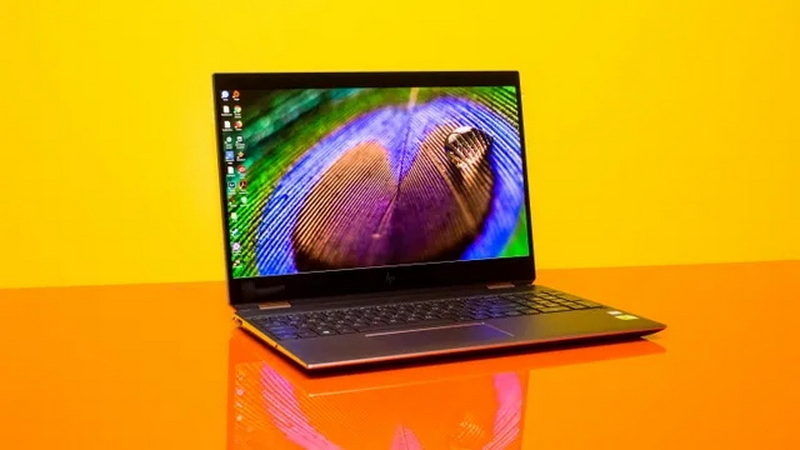
- Find your HP Spectre model number, usually on the bottom of the laptop or in Windows system settings.
- Visit HP's official website or support page and enter your model number.
- Look for display details. OLED screens are often explicitly labeled as “OLED,” “AMOLED,” or “VESA DisplayHDR True Black.”
- If the display is listed as “IPS,” “WLED-backlit,” or “LCD,” it is likely not OLED.
- Press `Windows + R`, type `msinfo32`, and press Enter.
- Navigate to Components > Display.
- While this may not always state “OLED” directly, some models include detailed panel information or manufacturer codes.
- Open a pure black image in a dark room.
- If the black areas appear completely dark without any light bleed, your screen is likely OLED.
- Display vibrant color test images; OLED screens will show richer, more saturated colors.
- Applications like AIDA64, HWInfo, or DisplayHDR Test can provide detailed panel information.
- Look for manufacturer names such as Samsung Display Corporation (SDC), which often supplies OLED panels.
- Check for keywords like “OLED” or “True Black” in the panel description.
- Some HP Spectre models come with “OLED” stickers on the palm rest or packaging.
- Certifications like “VESA DisplayHDR True Black” or “Eyesafe Certified” also hint toward OLED technology.
Sometimes, official documentation can be confusing because HP offers multiple display options for the same Spectre model number. For example, a 4K Spectre might be available with both OLED and IPS LCD panels depending on the region or retailer.
If you find conflicting information:
- Contact HP Support with your laptop's serial number to confirm the display type.
- Check your purchase invoice or retailer's product description carefully.
- Search online forums or reviews for your exact model configuration.
When system info is inconclusive, third-party tools can help:
- AIDA64 Extreme: Under Display > Monitor, look for panel manufacturer and type.
- HWInfo: Provides detailed panel codes; OLED panels often have specific model numbers.
- DisplayHDR Test: Running HDR tests can reveal if your screen supports true HDR black levels, typical of OLED.
These tools provide a deeper look into your hardware and can confirm panel technology.
Display a full-screen black image in a dark room. On an OLED screen, black areas will be completely dark with no light emission. On an IPS LCD, you will notice a slight glow or grayish tint due to backlight bleed.
Show a smooth gradient image. OLED displays produce smooth transitions without banding, while some LCDs may show visible color banding or unevenness.
Play a fast-moving video or animation. OLED displays have faster pixel response times, resulting in less motion blur compared to IPS LCDs.
Tilt your laptop screen to extreme angles. OLED screens maintain color accuracy and contrast better than IPS LCDs, which may show color shifts or brightness loss.
If you still cannot determine your screen type:
- Use your serial number to contact HP Support directly.
- Check the original packaging or invoice for display details.
- Search for teardown or review videos of your exact model.
- Consider that some retailers may ship different display types under the same model number.
Owning an OLED screen means you should take some precautions to maximize its lifespan:
- Avoid static images for prolonged periods to prevent burn-in.
- Use screen savers or enable auto-hide for taskbars.
- Adjust brightness to comfortable levels; OLEDs often look better at moderate brightness.
- Enable any built-in pixel refresh or compensation features your laptop offers.
- Keep your system updated to benefit from display optimizations.
Identifying whether your HP Spectre screen is OLED involves combining official specification checks, system information tools, and simple visual tests. OLED displays offer superior contrast, color accuracy, and viewing experience, making them highly desirable for multimedia and creative users. If uncertainty remains, contacting HP support or your retailer with your serial number is the best way to confirm. Proper care of OLED screens will ensure you enjoy their benefits for years to come.
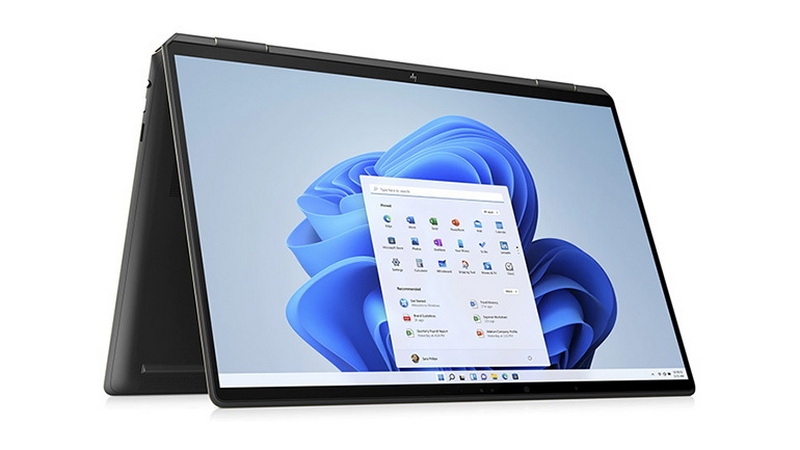
Check your product specifications on HP's website or your purchase invoice for “OLED” labeling. Perform a black image test in a dark room—if black areas emit no light, it's likely OLED.
No, upgrading to OLED requires replacing the entire display assembly and is not officially supported due to hardware and software compatibility.
Yes, OLED screens emit less blue light and often include flicker-free technology, reducing eye strain during extended use.
While OLEDs can experience burn-in if static images are displayed too long, modern panels include mitigation technologies such as pixel shifting and screen savers.
HP offers multiple configurations to cater to different user needs and price points. Always verify your specific model's display type before purchase.


