
Views: 222 Author: Tina Publish Time: 2025-03-01 Origin: Site


Content Menu
● Understanding the Lenovo IdeaPad 310 Display Variants
● Methods to Determine Your IdeaPad 310's LCD Display
>> 1. Check the Device Specifications
>> 2. Use Third-Party Software
>> 3. Consult the Lenovo Support Website
● Understanding LCD Display Specifications
>> Resolution
>> Aspect Ratio
>> Refresh Rate
● Replacing or Upgrading Your IdeaPad 310's LCD Display
● Troubleshooting Common Display Issues
● Optimizing Your IdeaPad 310's Display
● The Importance of Proper Display Care
● Future-Proofing Your Display Knowledge
● FAQ
>> 1: What tools do I need to replace the LCD display on my Lenovo IdeaPad 310?
>> 2: Can I upgrade my Lenovo IdeaPad 310 from an HD to a Full HD display?
>> 3: How often should I calibrate my Lenovo IdeaPad 310's display?
>> 4: What causes screen flickering on my Lenovo IdeaPad 310, and how can I fix it?
>> 5: Is it safe to use third-party LCD displays for my Lenovo IdeaPad 310?
The Lenovo IdeaPad 310 is a versatile laptop that comes in various configurations, including different display options. Determining the exact LCD display for your specific IdeaPad 310 model is crucial for several reasons, such as screen replacement, troubleshooting display issues, or simply understanding your device's specifications. This comprehensive guide will walk you through the process of identifying the exact LCD display for your Lenovo IdeaPad 310, providing valuable insights and practical tips along the way.
The Lenovo IdeaPad 310 series offers multiple display options, varying in size, resolution, and technology. Some of the common display specifications include:
- 15.6-inch displays (most common)
- 14-inch displays (on some models)
- HD (1366x768) resolution
- Full HD (1920x1080) resolution
- LED-backlit panels
- IPS (In-Plane Switching) technology on select models
It's important to note that the exact display specifications can vary depending on the specific model and configuration of your IdeaPad 310.
The easiest way to determine your IdeaPad 310's LCD display is by checking the device specifications. Here's how:
1. Click on the Windows Start button and type "System Information."
2. Open the System Information app.
3. In the left pane, expand the "Components" section and click on "Display."
4. Look for information such as the display name, resolution, and other relevant details.
Several third-party applications can provide detailed information about your laptop's display. One popular option is AIDA64:
1. Download and install AIDA64 from their official website.
2. Launch the application and navigate to the "Display" section.
3. Here, you'll find comprehensive information about your LCD display, including the exact model number, manufacturer, and technical specifications.
Lenovo's official support website can be a valuable resource for determining your IdeaPad 310's LCD display:
1. Visit the Lenovo Support website.
2. Enter your device's serial number or select your model manually.
3. Navigate to the "Parts" or "Specifications" section.
4. Look for information about the display or screen.
If software methods don't provide the information you need, you can physically inspect the LCD display:
1. Power off your laptop and unplug it from any power source.
2. Carefully remove the bezel surrounding the display.
3. Look for a label on the back of the LCD panel, which often contains the exact model number and specifications.
Caution: Only attempt this method if you're comfortable with disassembling your laptop. If unsure, consult a professional technician.
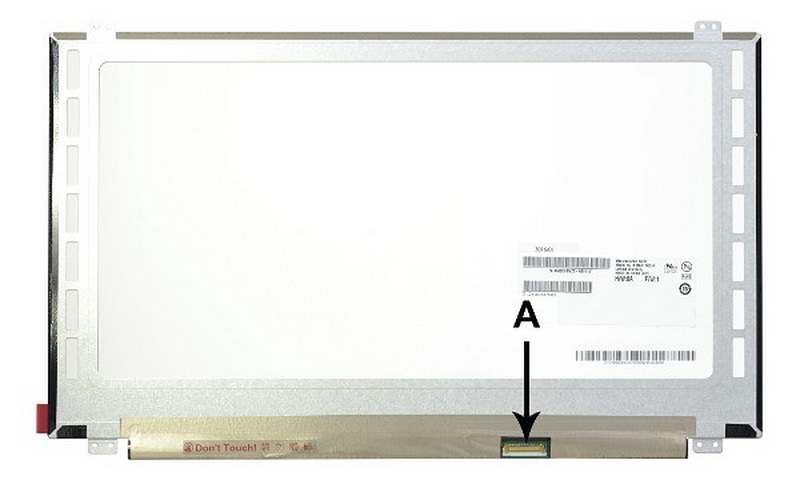
Once you've determined your IdeaPad 310's LCD display model, it's essential to understand the specifications:
Resolution refers to the number of pixels displayed on the screen. Common resolutions for the IdeaPad 310 include:
- HD (1366x768)
- Full HD (1920x1080)
Higher resolutions generally provide sharper and more detailed images.
The IdeaPad 310 may use different panel technologies:
- TN (Twisted Nematic): Offers fast response times but limited viewing angles and color accuracy.
- IPS (In-Plane Switching): Provides better color reproduction and wider viewing angles.
Most IdeaPad 310 models use a 16:9 aspect ratio, which is standard for modern laptops and ideal for multimedia content.
The refresh rate, typically 60Hz for most IdeaPad 310 models, determines how many times per second the display updates its image.
If you're considering replacing or upgrading your IdeaPad 310's LCD display, keep the following points in mind:
1. Compatibility: Ensure the replacement display is compatible with your specific IdeaPad 310 model.
2. Resolution: Match the resolution of the original display or choose a higher resolution if supported by your laptop's hardware.
3. Connector type: Verify that the new display uses the same connector type as your original screen.
4. Installation: Unless you're experienced with laptop repairs, it's recommended to have a professional technician perform the replacement.
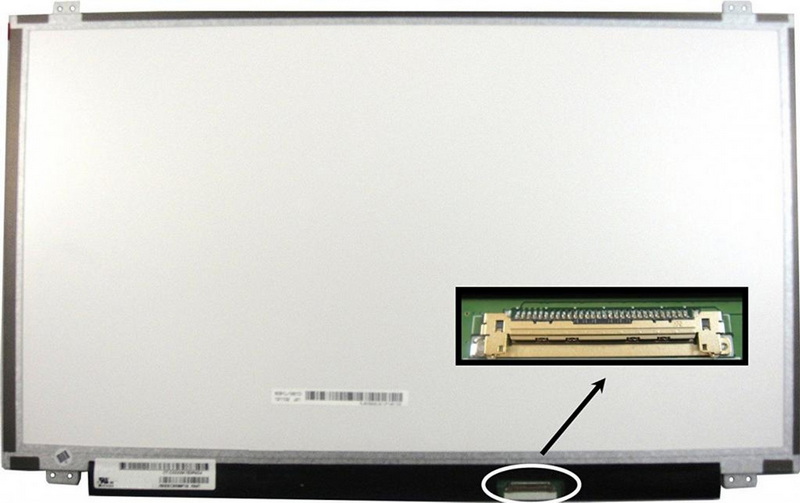
Understanding your IdeaPad 310's LCD display can help you troubleshoot common issues:
1. Screen flickering: May be caused by loose connections or outdated display drivers.
2. Dead pixels: Small, permanently dark or bright spots on the screen.
3. Backlight problems: Resulting in a dim or uneven display.
4. Color inaccuracy: Could be due to calibration issues or panel limitations.
If you encounter any of these problems, knowing your exact LCD display model can help you find specific solutions or determine if a replacement is necessary.
Once you've identified your LCD display, you can optimize its performance:
1. Calibrate the colors for better accuracy.
2. Adjust the brightness and contrast for comfortable viewing.
3. Enable blue light filters for reduced eye strain during night-time use.
4. Update display drivers regularly for optimal performance and compatibility.
Knowing your IdeaPad 310's LCD display specifications can help you take better care of it:
1. Clean the screen with appropriate materials and techniques.
2. Avoid exposing the display to extreme temperatures or humidity.
3. Be cautious when transporting your laptop to prevent screen damage.
4. Consider using a screen protector for added durability.
As technology evolves, staying informed about display technologies can help you make better decisions for future upgrades or purchases. Keep an eye on emerging technologies such as:
- OLED displays
- Higher refresh rates (e.g., 120Hz, 144Hz)
- HDR (High Dynamic Range) capabilities
Understanding these advancements will help you appreciate your current IdeaPad 310 display and make informed decisions for future devices.
Determining the exact LCD display for your Lenovo IdeaPad 310 is a valuable skill that can aid in maintenance, troubleshooting, and potential upgrades. By utilizing the methods outlined in this guide, you can confidently identify your display's specifications and make informed decisions about its care and potential replacement. Remember that each IdeaPad 310 model may have unique characteristics, so always double-check your findings against official Lenovo documentation when possible.
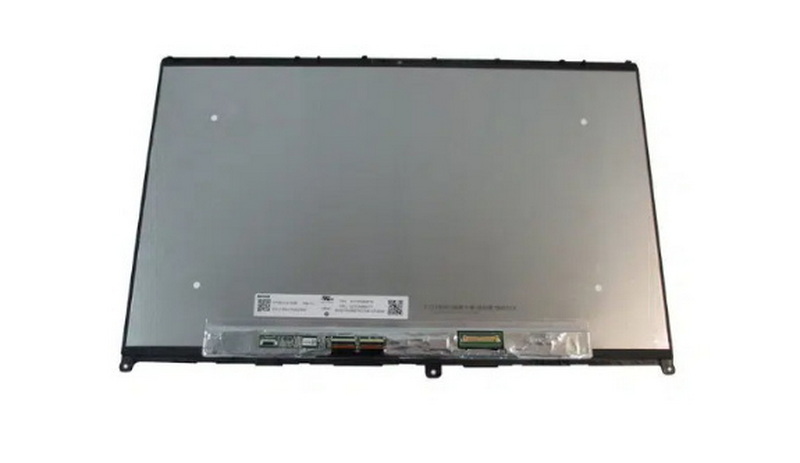
To replace the LCD display on your Lenovo IdeaPad 310, you'll typically need the following tools:
- Small Phillips head screwdriver
- Plastic pry tool or credit card (for separating the bezel)
- Anti-static wrist strap (recommended)
- Tweezers (for handling small connectors)
- Clean, soft cloth (for cleaning the new display)
Always refer to the official Lenovo service manual for your specific model before attempting any repairs.
Upgrading from an HD (1366x768) to a Full HD (1920x1080) display on your IdeaPad 310 may be possible, but it depends on several factors:
- Your laptop's hardware must support the higher resolution
- The display connector must be compatible
- The new display must physically fit in your laptop's chassis
Before attempting an upgrade, consult with Lenovo support or a professional technician to ensure compatibility and proper installation.
Display calibration frequency depends on your usage and requirements:
- For casual users: Every 6 months to 1 year
- For professionals working with color-sensitive tasks: Every 1-3 months
- After any major software updates or changes to your display settings
Regular calibration ensures accurate color reproduction and optimal viewing experience.
Screen flickering on your IdeaPad 310 can be caused by several factors:
- Outdated or corrupted display drivers
- Loose cable connections
- Incompatible refresh rate settings
- Hardware issues with the display or graphics card
To fix flickering:
- Update your display and graphics drivers
- Check and secure all cable connections
- Adjust display settings in Windows
- If problems persist, consult with Lenovo support or a technician
Using third-party LCD displays for your IdeaPad 310 can be safe if you take proper precautions:
- Ensure exact compatibility with your specific model
- Purchase from reputable suppliers with good warranties
- Verify the quality and specifications match or exceed the original display
- Consider professional installation to avoid damage
While third-party displays can offer cost savings, be aware that they may not always match the quality or performance of original Lenovo parts.
[1] https://www.psaparts.com.au/laptop-screen/lenovo/ideapad-310-15ikb-80tv-lcd-panel--pd2whf.html
[2] https://www.gadgets360.com/lenovo-ideapad-310-5282
[3] https://patents.google.com/patent/CN1176430A/zh
[4] https://www.laptopscreen.com/English/model/Lenovo/IDEAPAD~310-15ABR/
[5] https://psref.lenovo.com/syspool/Sys/PDF/Lenovo_Laptops/ideapad_310_15_310_15_Touch/ideapad_310_15_310_15_Touch_Spec.PDF
[6] https://patents.google.com/patent/CN107025040B/zh
[7] https://smartsupport.lenovo.com/kz/fi/documents/pd104484/
[8] https://www.bajajfinserv.in/lenovo-ideapad-310-price-in-india
[9] https://patents.google.com/patent/CN116431132A/zh
[10] https://objects.icecat.biz/objects/mmo_35529939_1483613470_6283_19812.pdf
[11] https://download.lenovo.com/pccbbs/mobiles_pdf/t480s_ug_zh-cn.pdf
[12] https://icecat.tw/p/lenovo/80sm010fix/ideapad-laptops-0190793819597-310-15isk-33352982.html


