

Views: 222 Author: Tina Publish Time: 2025-02-18 Origin: Site


Content Menu
● Understanding the GXP2200EXT LCD Display
>> Importance of Adjusting Display Settings
● Steps to Adjust the LCD Display
>> Step 1: Accessing the Settings Menu
>> Step 2: Adjusting Brightness and Contrast
>> Step 3: Configuring Screen Timeout
>> Step 4: Customizing Multi-Purpose Keys (MPKs)
● Advanced Configuration Options
● Troubleshooting Common Issues
>> Issue 1: Display Not Responding
>> Issue 2: Poor Visibility Despite Adjustments
>> Issue 3: MPK Functions Not Working
>> Issue 4: Display Shows Incorrect Information
● FAQ
>> 1. How do I reset my GXP2200EXT display settings?
>> 2. Can I adjust my GXP2200EXT display remotely?
>> 3. What should I do if my screen is flickering?
>> 4. How often should I check my display settings?
>> 5. Are there any specific lighting conditions recommended for optimal use?
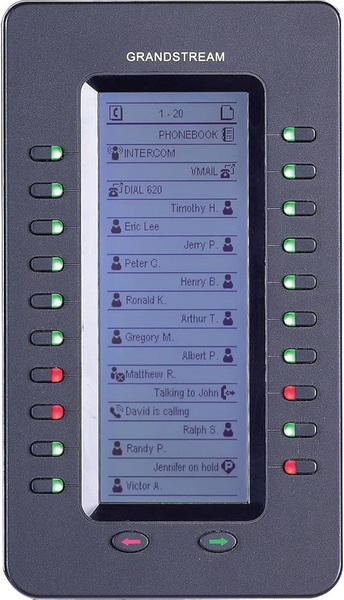
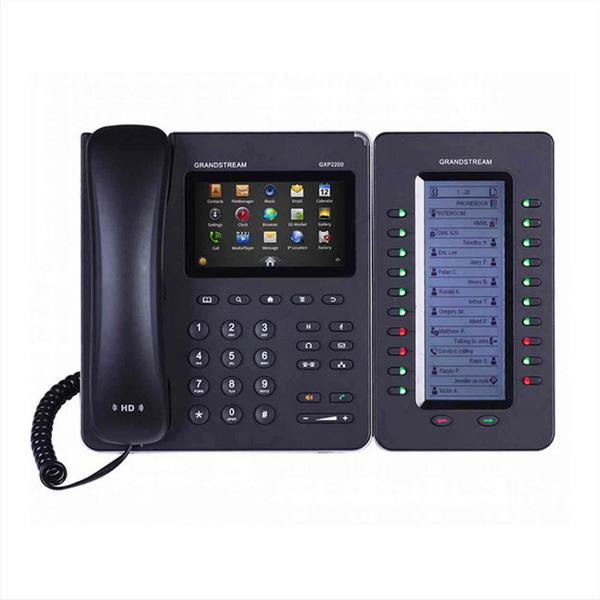
The Grandstream GXP2200EXT is an expansion module designed to enhance the functionality of the Grandstream GXP2200 series IP phones. It features a high-resolution LCD display that provides users with vital information and interactive controls. Adjusting the LCD display settings can significantly improve usability and visibility, making it essential for users to understand how to customize these settings effectively. This comprehensive guide will walk you through the steps necessary to adjust the LCD display on a GXP2200EXT, including detailed instructions, troubleshooting tips, frequently asked questions, and advanced configuration options.
The GXP2200EXT features a 4.3-inch TFT color LCD display with a resolution of 480x272 pixels. This display allows users to view multiple lines of information, including:
- Multi-Purpose Keys (MPKs): Up to 40 programmable keys that can be customized for various functions, providing quick access to frequently used features.
- Status Indicators: Visual indicators for call states, voicemail notifications, and other important alerts.
- Menu Navigation: Access to settings and configurations directly from the display, allowing for easy adjustments without requiring external tools.
- Contact Information: Display of caller ID, contact names, and other relevant data for incoming and outgoing calls.
Adjusting the display settings on the GXP2200EXT can enhance user experience by:
- Improving visibility in different lighting conditions, ensuring the screen remains readable regardless of ambient light levels.
- Customizing the layout and appearance of information displayed, allowing users to prioritize the information most relevant to their needs.
- Ensuring that users can quickly access important functions without strain, reducing errors and increasing productivity.
- Reducing eye strain by optimizing brightness and contrast to match individual preferences and environmental conditions.
To begin adjusting the LCD display settings, you need to access the settings menu on your GXP2200 phone.
1. Power On Your Device: Ensure that your GXP2200 phone is powered on and connected to the network. Verify network connectivity to ensure settings are correctly saved and applied.
2. Navigate to Menu: Press the Menu button on your phone. This button is typically located on the front panel of the phone.
3. Select Settings: Use the navigation keys (typically up, down, left, and right arrows) to scroll down and select Settings from the menu options. Press the OK or Select button to enter the Settings menu.
Once you are in the settings menu, you can adjust both brightness and contrast settings for optimal visibility.
1. Select Display Settings: In the settings menu, navigate to Display Settings. This option may also be labeled as "LCD Settings" or similar.
2. Adjust Brightness:
- Use the up and down keys to increase or decrease brightness levels. The brightness setting controls the intensity of the backlight, affecting how easily the screen can be seen in different lighting conditions.
- A preview of brightness changes will be visible on the screen, allowing you to see the effect of your adjustments in real-time.
3. Adjust Contrast:
- Navigate to the contrast setting within the same menu. The contrast setting adjusts the difference between the darkest and brightest parts of the screen, affecting the clarity and detail of the displayed information.
- Adjust using similar up and down keys until you achieve a comfortable viewing level. Experiment with different contrast levels to find the setting that best suits your vision and the ambient lighting.
Screen timeout settings determine how long the display remains active before dimming or turning off, which can help conserve energy and reduce distractions.
1. Select Screen Timeout: Still within the Display Settings, find and select Screen Timeout.
2. Choose Timeout Duration:
- Options typically range from 10 seconds to several minutes, or an option to disable the timeout completely (always on).
- Select your preferred duration based on usage patterns. If you frequently use the phone, a longer timeout may be preferable. If you want to conserve energy, a shorter timeout is better.
Customizing MPKs can enhance functionality and make it easier to access frequently used features, such as speed dial, call transfer, or presence monitoring.
1. Access MPK Configuration:
- Navigate back to the main menu and select MPK Configuration. This option may also be labeled as "Programmable Keys" or similar.
2. Assign Functions:
- Choose each MPK and assign functions such as speed dial, call transfer, or other features as needed. The available functions will depend on your phone system configuration and the features supported by your GXP2200EXT.
- To assign a function, select the MPK, choose the desired function from the list, and enter any required information (e.g., the phone number for a speed dial).
3. Save Changes: After customizing your MPKs, ensure you save all changes before exiting. The Save option is usually located at the bottom of the MPK Configuration menu.
After making all necessary adjustments:
1. Review Changes: Go through all adjusted settings one last time to ensure they are correct and meet your preferences.
2. Save All Settings: Ensure that you save all changes made in each section before exiting. Look for a Save button or option within each settings menu.
3. Exit Menu: Press the back button until you return to the home screen. The phone should now be using the new settings.
For more advanced configuration options, you can access the GXP2200EXT's web interface.
1. Find the IP Address: Determine the IP address of your GXP2200 phone. This can usually be found in the phone's settings menu under "Status" or "Network."
2. Access the Web Interface: Open a web browser and enter the IP address of your phone.
3. Log In: Enter your username and password to log in to the web interface. The default credentials are often "admin" for both username and password, but this may have been changed by your administrator.
4. Navigate to Settings: Look for the "Settings" or "Configuration" section in the web interface.
5. Adjust Display Settings: Here, you can access more advanced display settings, such as color profiles, font sizes, and other customization options.
Keeping your GXP2200EXT firmware up to date is crucial for ensuring optimal performance and compatibility.
1. Check for Updates: Regularly check the Grandstream website for firmware updates for your GXP2200 series phones.
2. Download Firmware: Download the latest firmware file.
3. Update Firmware: Use the web interface to upload and install the new firmware. Follow the on-screen instructions carefully to avoid interrupting the update process.
If your LCD display is unresponsive after adjustments:
- Check Power Supply: Ensure that your device is properly powered. A faulty power supply can cause a range of issues, including an unresponsive display.
- Reboot Device: Sometimes a simple reboot can resolve temporary glitches. Power off the device, wait a few seconds, and then power it back on.
If visibility remains poor even after adjusting brightness and contrast:
- Lighting Conditions: Consider your environment; excessive glare or poor lighting may affect visibility. Adjust the phone's position or add a screen filter to reduce glare.
- Reset Display Settings: If necessary, reset all display settings to factory defaults and readjust them again. This can help resolve conflicts or incorrect settings.
If customized MPK functions do not work as expected:
- Recheck Assignments: Go back into MPK configuration and ensure that functions are correctly assigned. Verify that the correct numbers and settings are entered for each function.
- Firmware Update: Check if there are any firmware updates available for your device that might resolve bugs related to MPK functionality.
If the display is showing outdated or incorrect information:
- Network Connectivity: Verify that the phone is connected to the network and can communicate with the phone system.
- Server Settings: Check the phone's server settings to ensure they are correctly configured and point to the correct server.
Adjusting the LCD display on a GXP2200EXT is essential for optimizing user experience and ensuring ease of use in various environments. By following this comprehensive guide, users can effectively customize their display settings, improve visibility, enhance functionality through proper configuration of MPKs, and troubleshoot common issues. Regularly revisiting these settings and keeping the firmware up to date can also help maintain optimal performance as lighting conditions or usage patterns change over time.
To reset your display settings, navigate to the Display Settings menu, select Reset, and confirm your choice. This will restore factory defaults for brightness, contrast, and timeout settings.
Yes, if your device is configured for remote management via a web interface or SIP account, you can adjust display settings remotely through compatible software tools or web interfaces provided by Grandstream. Refer to your phone system's documentation for instructions.
Screen flickering may indicate a hardware issue or power supply problem. Ensure that connections are secure; if flickering persists, consider contacting Grandstream support for further assistance. Also, check for potential electromagnetic interference from nearby devices.
It's advisable to check your display settings periodically—especially when changing environments (e.g., moving from an office with natural light to one with artificial lighting) or after firmware updates. A quick review every few months can ensure optimal visibility and comfort.
For optimal use of your GXP2200EXT display, avoid direct sunlight hitting the screen while ensuring adequate ambient lighting in your workspace for better visibility without straining your eyes. Experiment with different lighting arrangements to find what works best for you.


