

Views: 222 Author: Tina Publish Time: 2025-02-11 Origin: Site


Content Menu
● Understanding the LCD Screen
● Initial Troubleshooting Steps
● When to Seek Professional Help
● Maintaining Your Canon EOS 4000D
● FAQ
>> 1. Why is my Canon EOS 4000D LCD screen black?
>> 2. How do I reset my Canon EOS 4000D?
>> 3. Can I use my Canon EOS 4000D without the LCD screen?
>> 4. How do I update the firmware on my Canon EOS 4000D?
>> 5. What should I do if my Canon EOS 4000D still has a black screen after troubleshooting?
The Canon EOS 4000D, also known as the Rebel T100, is a fantastic entry-level DSLR that offers great value for money[4]. However, like any electronic device, it can sometimes run into issues. One common problem users face is a black LCD screen. This article aims to guide you through troubleshooting steps, potential causes, and advanced solutions to resolve this issue.
The LCD monitor on your Canon EOS 4000D is crucial for several functions[4]:
- Displaying the shooting settings screen.
- Navigating the menu.
- Reviewing captured images.
If the screen is black, you will struggle to use these functions effectively.
Before diving into more complex solutions, start with these basic checks:
1. Battery Check:
- Ensure your battery is fully charged[2].
- Remove the battery, wait a few seconds, and reinsert it[1].
- Make sure it is a Canon-branded battery[1].
- Check the battery voltage to ensure it is above 7.4V if fully charged[2].
2. Power Cycle:
- Turn off the camera.
- Remove the battery and SD card[1].
- Press the power button a few times to discharge any residual electricity[2].
- Reinsert the battery and SD card, then turn the camera on[2].
3. Disp Button:
- Press the Disp button located on the top left of the camera's back[1]. This button controls the display settings and might have been accidentally turned off.
4. Check the Pins:
- Inspect the battery compartment for any bent pins[2]. Bent pins can disrupt the power supply.
5. External Accessories:
- Remove any external accessories such as battery grips or external flashes[1]. These can sometimes interfere with the camera's functionality.
If the initial steps don't resolve the issue, consider these potential causes:
1. Auto Power Off:
- The camera might be set to automatically turn off the LCD screen to save battery[7].
- Go to the setup menu and adjust the auto power-off settings[7]. Extend the time to a minute or disable it temporarily to see if that resolves the issue[7].
- Menu > Setup Menu 1 > Auto Power Off
2. Eye Proximity Sensor:
- Some Canon "Rebel" series cameras have an eye proximity sensor that turns off the LCD when you bring your eye to the viewfinder[1].
- Although the EOS 4000D might not have this feature, ensure nothing is blocking the area around the viewfinder[1].
3. LCD Brightness:
- The LCD brightness might be set too low[4].
- Navigate to the LCD brightness settings in the menu and increase the brightness[4].
- Menu > Display Settings > LCD Brightness
4. Software Glitches:
- A temporary software glitch might cause the screen to go black[2].
- Try to reboot the camera by removing the battery and pressing the power button for about 10-15 seconds before reinserting the battery[2].
5. Firmware Issues:
- An outdated or corrupted firmware can cause various issues[5].
- Check if there are any firmware updates available for your camera model on the Canon website.
- Follow the instructions on the Canon website to update the firmware.
If the problem persists, these advanced steps might help:
1. Factory Reset:
- Resetting the camera to its factory settings can resolve software-related issues[1].
- Navigate to the reset settings in the menu:
- Menu > Setup Menu > Clear all camera settings
-Image: Screenshot of the Clear all camera settings option. (Highlight where this option is located in the menu.)-
2. Check the Release Shutter:
- In shooting menu one, ensure that the release shutter without card is disabled[7].
- Menu > Shooting Menu 1 > Release Shutter without Card > Disable
3. Inspect the Flex Cable:
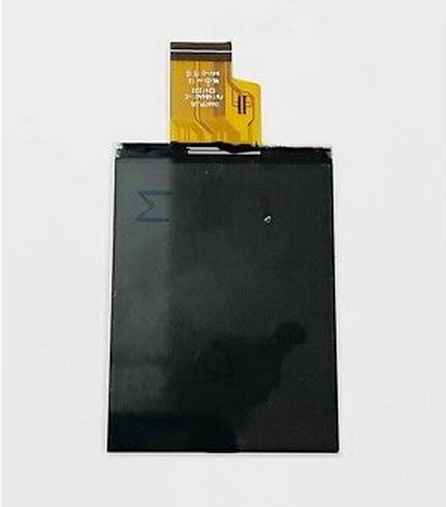
- The flex cable connecting the LCD screen to the camera's main board might be loose or damaged. -Note: This requires disassembling the camera and should only be done if you are comfortable with electronics repair.-
- Carefully open the camera and check the flex cable connection.
- Reattach the cable securely or replace it if damaged.
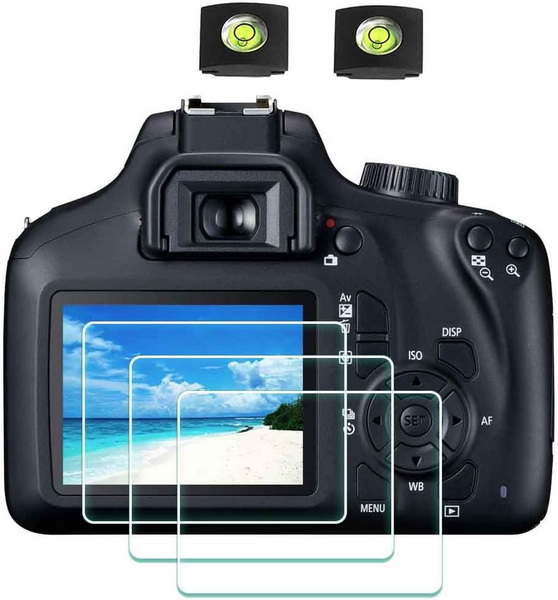
If none of the above steps work, the LCD screen or the camera's internal components may be damaged[5]. In this case, it is best to seek professional help:
- Contact Canon Support: Reach out to Canon's customer service for assistance.
- Visit a Certified Repair Shop: Take your camera to a certified repair shop for diagnosis and repair.
1. Use Live View:
- If the LCD screen is black but the camera still functions, use the Live View mode to compose your shots[4].
- Press the Live View button to activate the rear screen, which might still work even if the standard display doesn't.
2. Connect to an External Monitor:
- Connect your camera to an external monitor via HDMI to view the display[4].
- This can help determine if the issue is with the LCD screen itself or with the camera's internal processing.
3. Check Memory Card:
- Sometimes, a faulty memory card can cause display issues[1].
- Try using a different memory card to see if that resolves the problem.
To prevent future issues, follow these maintenance tips:
- Store Properly: Store your camera in a cool, dry place when not in use.
- Clean Regularly: Use a soft, dry cloth to clean the LCD screen and camera body.
- Avoid Extreme Conditions: Avoid exposing your camera to extreme temperatures, humidity, and direct sunlight.
A black LCD screen on your Canon EOS 4000D can be a frustrating issue, but with systematic troubleshooting, you can often resolve the problem yourself. Start with the basic checks, explore common causes, and consider advanced solutions if necessary. If all else fails, professional help is available to get your camera back in working order. Remember to maintain your camera properly to prevent future issues and ensure its longevity.
There could be several reasons, including a drained battery, auto power-off settings, software glitches, or hardware issues[2][7]. Start by checking the battery and display settings[1].
To reset your Canon EOS 4000D, go to the menu, find the "Setup" section, and choose "Clear all camera settings"[4]. This will restore the camera to its factory default settings.
Yes, you can use the viewfinder to compose your shots[4]. Additionally, you can connect the camera to an external monitor via HDMI to view the display[4].
Visit the Canon website and download the latest firmware for your camera model[5]. Follow the instructions provided by Canon to install the update.
If you have tried all the troubleshooting steps and the screen is still black, it is likely a hardware issue[5]. Contact Canon support or visit a certified repair shop for professional assistance[5].
[1] https://community.usa.canon.com/t5/EOS-DSLR-Mirrorless-Cameras/EOS-4000d-black-screen-but-camera-shoots-help/td-p/347001
[2] https://www.youtube.com/watch?v=h78aLtADnWA
[3] https://www.w3.org/TR/clreq/
[4] https://digitalphotographycourses.co.za/wp-content/uploads/2019/03/Canon-EOS-4000D.pdf
[5] https://community.usa.canon.com/t5/EOS-DSLR-Mirrorless-Cameras/EOS-4000d-black-screen-but-camera-shoots-help/td-p/347001/highlight/true/page/2?device-view=desktop
[6] https://www.jiqizhixin.com/articles/2024-05-14-4
[7] https://www.youtube.com/watch?v=O-fNGxaGtto
[8] https://forum.corsair.com/forums/topic/168075-help-corsair-4000d-airflow-pin-connections/
[9] https://llmbook-zh.github.io/LLMBook.pdf
[10] https://www.youtube.com/watch?v=hVTshBAcso4


