



Content Menu
>> 3. Signal Source Verification
● Repairing a Black LCD Display
>> Step 1: Disassemble the Device
>> Step 2: Inspect Internal Components
>> Step 3: Replace Faulty Parts
● Additional Troubleshooting Techniques
>> Adjust Brightness and Contrast Settings
● Preventive Measures for Future Issues
● Expanded Content Suggestions
● FAQ
>> 1. What should I do if my LCD screen is still black after checking connections?
>> 2. How can I tell if my power supply is failing?
>> 3. Is it safe to open my LCD display?
>> 4. Can I fix my LCD display myself?
>> 5. What tools do I need for repairing an LCD display?
Experiencing a black screen on your LCD display can be frustrating, whether it's on a television, computer monitor, or another device. This article will guide you through various troubleshooting steps and repair techniques to help you diagnose and fix the issue.
A black screen can occur for several reasons, including:
- Power Supply Issues: The device may not be receiving power.
- Backlight Failure: The backlight may be malfunctioning, leading to no visible image.
- Signal Problems: There may be issues with the input signal from connected devices.
- Internal Component Failures: Components like capacitors or the mainboard may be damaged.
Before diving into repairs, perform these initial checks:
1. Power Cycle the Device: Unplug the device for 30 seconds, then plug it back in.
2. Check Connections: Ensure all cables (power and signal) are securely connected.
3. Test with Different Inputs: Switch between HDMI ports or use another device to rule out input issues.
- LED Indicator Light: If the LED indicator is off or amber, there may be a power supply issue.
- Test Outlet: Plug another device into the same outlet to confirm it's working.
To determine if the backlight is functioning:
- Shine a flashlight on the screen while it's powered on. If you see a faint image, the backlight is likely faulty.
Make sure that your source device (like a computer or DVD player) is turned on and functioning correctly.

If preliminary checks indicate a hardware issue, you may need to disassemble your LCD display.
- TVs and Monitors:
- Unplug the device and remove screws from the back panel.
- Carefully pry off the back cover using a plastic tool to avoid damaging clips.
Once opened, inspect for visible damage:
- Look for burnt components on the power supply board.
- Check for bulging capacitors which can indicate failure.
Depending on your diagnosis:
- Backlight Replacement:
- If backlight LEDs are damaged, replace them. This often involves removing diffusers and replacing LED strips.
- Capacitor Replacement:
- If capacitors are bulging or burnt, replace them with new ones of the same specifications.
If your LCD display remains black after performing basic checks and repairs, consider these additional troubleshooting methods:
Sometimes, users accidentally lower brightness settings too much, causing screens to appear black.
- Access your device's menu settings using remote control or buttons on the monitor and adjust brightness levels accordingly.
Dead pixels are tiny dots that do not change color or display any image. You can troubleshoot dead pixels by:
- Using pixel-fixing software that rapidly changes colors to revive stuck pixels.
- Gently massaging the affected area with a soft cloth wrapped around your finger to apply light pressure without damaging the screen.
Loose or damaged cables can prevent signals from reaching your display:
- Check video cables (HDMI, VGA, etc.) for any signs of wear or damage.
- Replace any faulty cables and ensure connections are secure at both ends.
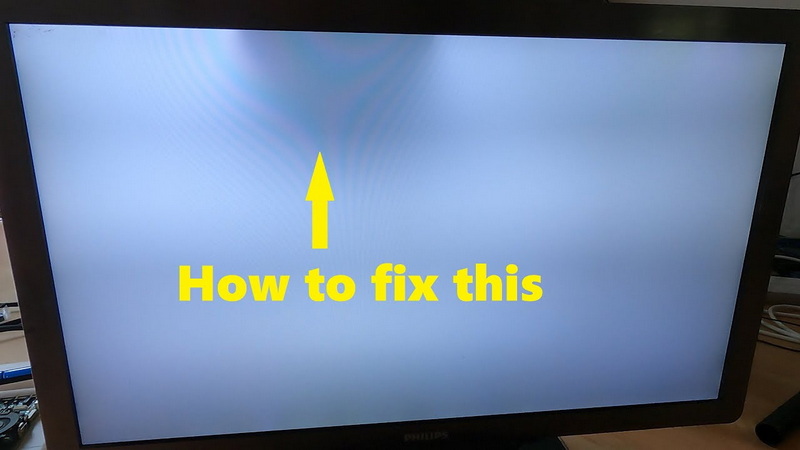
After replacing any faulty components:
1. Carefully reassemble your device by reversing the disassembly steps.
2. Power on the device to test if it functions correctly.
To avoid encountering black screen issues in the future, consider implementing these preventive measures:
- Regularly clean your LCD screen to prevent dust accumulation that can interfere with performance.
- Avoid exposing your display to extreme temperatures or humidity levels which can affect internal components.
- Ensure proper ventilation around electronic devices to prevent overheating.
1. Detailed Repair Guides:
- Include step-by-step guides for specific models of TVs or monitors.
- Provide images showing each step of disassembly and component replacement.
2. Video Demonstrations:
- Embed links to video tutorials showcasing common repairs.
- Include videos demonstrating how to test components like power supplies or backlights effectively.
3. Common Problems & Solutions Table:
- Create a table summarizing common LCD problems along with their symptoms and solutions for quick reference.
4. User Experiences:
- Share anecdotes from users who have successfully repaired their displays using these methods.
- Include tips they found helpful during their repair processes.
5. Technical Specifications:
- Discuss technical specifications of common components like backlights and capacitors that users might need when sourcing replacements.
- Provide guidance on where to purchase reliable parts online.
Fixing a black LCD display can often be accomplished with some basic troubleshooting and repairs. By following these steps, you can potentially save money by avoiding professional repairs. Remember that safety is paramount; always ensure devices are unplugged before disassembly.
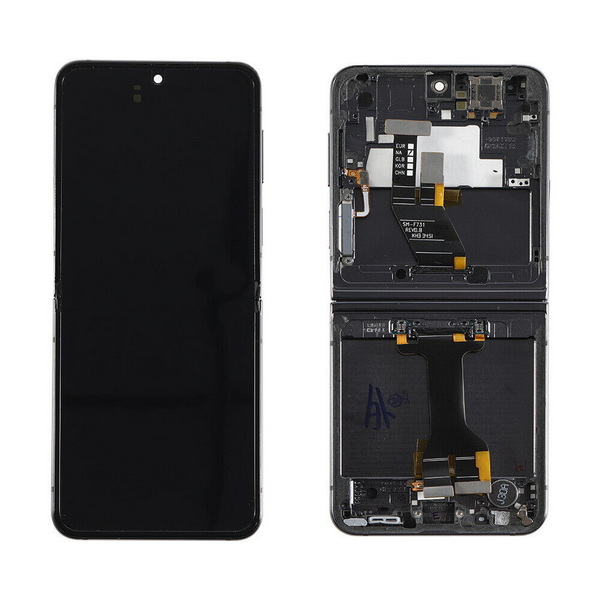
If your screen remains black after verifying connections, perform a backlight test using a flashlight. If faint images appear, consider replacing the backlight.
Check if the LED indicator light is off or amber when powered on. If so, test another device in the same outlet to confirm power availability.
Yes, but ensure that you unplug it first to avoid electric shock. Handle internal components carefully to prevent damage.
Many issues can be fixed at home with basic tools and parts available online. However, if you're unsure, consult a professional technician.
Common tools include screwdrivers (Phillips and flathead), pliers, and possibly a multimeter for testing electrical components.
[1] https://answers.microsoft.com/en-us/windows/forum/all/my-monitor-screen-is-black-but-has-power-and-is/d91a81c0-dcc3-49fd-93c4-45bfcb7d09f5
[2] https://www.instructables.com/Repair-a-Malfunctioning-LCD/
[3] https://www.ask.com/news/troubleshoot-fix-common-lcd-display-problems
[4] https://www.hp.com/my-en/shop/tech-takes/post/how-to-fix-computer-black-screen
[5] https://tru-vumonitors.com/tech-center/lcd-monitor-troubleshooting-guide/
[6] https://www.youritech.com/what-are-the-solutions-to-the-blackening-of-the-lcd-screen.html
[7] https://recoverit.wondershare.com/computer-problems/fix-computer-monitor-that-gets-black-screen.html
[8] https://www.youtube.com/watch?v=dbCwBgdv1Xc
[9] https://www.youritech.com/reasons-and-solutions-for-the-blackening-of-the-edge-of-the-lcd-screen.html
[10] https://www.computerhope.com/issues/ch000241.htm


