

Views: 222 Author: Tina Publish Time: 2025-06-05 Origin: Site


Content Menu
● How to Clean an OLED Laptop Screen: A Complete Guide
>> Step 1: Power Off and Unplug Your Laptop
>> Step 2: Remove Dust and Loose Particles with a Dry Microfiber Cloth
>> Step 3: Prepare a Cleaning Solution
>> Step 4: Lightly Dampen the Microfiber Cloth
>> Step 5: Gently Wipe the Screen
>> Step 7: Power On and Inspect
● Additional Tips for Maintaining Your OLED Laptop Screen
● Understanding OLED Screen Sensitivities
● Why Avoid Common Household Cleaners?
● Additional Questions and Answers
>> 1. What is the best cloth to use for cleaning OLED laptop screens?
>> 2. Can I clean my OLED screen while the laptop is on?
>> 3. How do I avoid streaks on my OLED screen after cleaning?
>> 4. Are there any commercial products recommended for OLED screen cleaning?
>> 5. What should I do if I accidentally apply too much liquid on my OLED screen?
Cleaning an OLED laptop screen requires careful attention and the right materials to avoid damage while maintaining the screen's vibrant display quality. OLED screens are delicate and sensitive to pressure, moisture, and harsh chemicals, so following a proper cleaning routine is essential. This comprehensive guide will walk you through the step-by-step process of cleaning your OLED laptop screen safely and effectively, supplemented with helpful tips, recommended products, and answers to common questions.
- Soft, clean, lint-free microfiber cloths (preferably 2-3)
- Distilled water
- White vinegar (optional, for tougher stains)
- Specialized electronic screen cleaner (optional, alcohol-free and ammonia-free)
- 70% isopropyl alcohol solution (only for QD-OLED screens, used sparingly)
- Spray bottle (to lightly dampen cloth, never spray directly on screen)
Before you start cleaning, turn off your laptop completely and disconnect it from any power source. This prevents electrical damage and makes smudges and dirt easier to see on a dark screen. Allow the screen to cool down if it was recently in use, as cleaning a warm screen can cause damage or streaks.
Use a clean, dry microfiber cloth to gently wipe the screen in broad, circular motions. This step removes dust, fingerprints, and light smudges without applying moisture or pressure. Avoid using paper towels or rough fabrics, as they can scratch the OLED surface.
For general cleaning, distilled water is ideal because it does not contain minerals or impurities that could leave residue or damage the screen. For tougher smudges, mix equal parts distilled water and white vinegar. For QD-OLED screens, a 70% isopropyl alcohol solution can be used but only lightly and with caution.
Spray the cleaning solution onto the microfiber cloth—never spray directly onto the screen. The cloth should be slightly damp, not wet, to avoid moisture seeping into the edges of the screen and damaging internal components.
Starting from the top, wipe the screen gently in horizontal or circular motions toward the bottom. Use very light pressure to avoid damaging the thin OLED panel. Focus on areas with fingerprints or smudges, but do not rub harshly.
After cleaning, use a dry microfiber cloth to gently buff the screen and remove any remaining moisture or streaks. Let the screen air dry completely before closing the laptop lid or powering it back on.
Once the screen is dry, plug in and power on your laptop to ensure the display is clear and functioning properly.
To keep your OLED laptop screen in pristine condition, consider these extra maintenance tips:
- Avoid Excessive Pressure: OLED panels are extremely thin and sensitive. Pressing too hard can cause permanent damage such as dead pixels or color distortion.
- Limit Exposure to Direct Sunlight: Prolonged exposure to direct sunlight can degrade OLED pixels over time, leading to burn-in or fading.
- Use a Screen Protector: Consider applying a high-quality, anti-glare screen protector designed for OLED screens to guard against scratches and fingerprints.
- Keep Hands Clean: Oils and dirt from your fingers can accumulate quickly, so wash your hands before using the laptop or avoid touching the screen altogether.
- Store Properly: When not in use, close your laptop gently and store it in a clean, dust-free environment to minimize debris settling on the screen.
- Regular Cleaning Schedule: Establish a routine to clean your screen every one to two weeks, depending on your environment and usage, to prevent buildup of oils and dust.
OLED (Organic Light Emitting Diode) screens differ from traditional LCDs because each pixel emits its own light. This design provides superior contrast, deeper blacks, and vibrant colors but also makes the screen more vulnerable to damage from improper cleaning methods.
- Pressure Sensitivity: Excessive force can cause pixels to malfunction or create permanent marks.
- Moisture Sensitivity: Liquids can seep into the screen edges and damage internal circuitry.
- Chemical Sensitivity: Harsh chemicals can strip the protective coatings or discolor pixels.
Therefore, it is crucial to use gentle cleaning methods and avoid abrasive or chemical-laden products.
Many household cleaners contain ammonia, alcohol, or other solvents that can damage the delicate layers of an OLED screen. These chemicals may:
- Remove or degrade anti-reflective coatings
- Cause discoloration or hazing
- Accelerate pixel wear or burn-in
Instead, rely on distilled water or specialized electronic screen cleaners that are free from alcohol and ammonia. These products are formulated to clean effectively without harming the screen.
Cleaning your OLED laptop screen properly is essential to preserve its vibrant display and extend its lifespan. Using the right materials—soft microfiber cloths, distilled water, and gentle cleaners—and following a careful cleaning procedure ensures your screen remains clear and damage-free. Avoid harsh chemicals, excessive moisture, and pressure to protect the delicate OLED panel. Regular maintenance and mindful handling will keep your laptop looking its best and performing optimally for years to come.
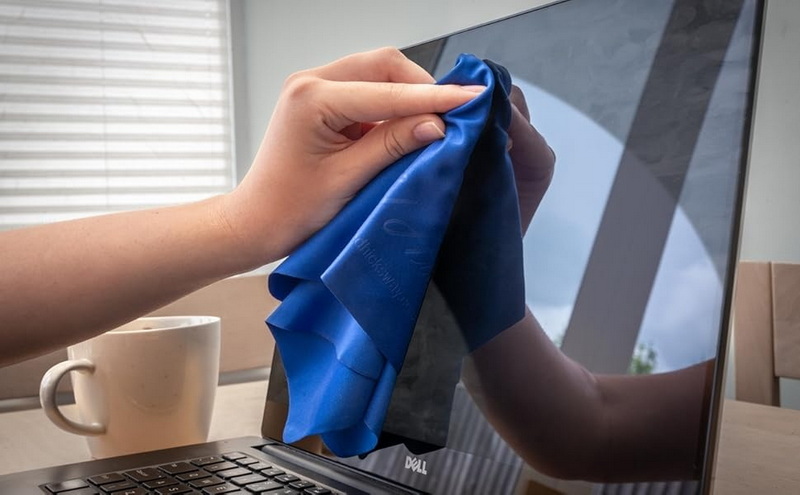
A soft, lint-free microfiber cloth is best as it gently removes dust and oils without scratching the screen.
No, always power off and unplug your laptop before cleaning to avoid electrical damage and better see smudges.
Use a slightly damp cloth rather than a wet one, wipe gently in circular motions, and dry with a clean microfiber cloth.
Yes, specialized screen cleaners designed for electronics that are alcohol and ammonia-free are safe options.
Immediately power off the device, gently blot excess moisture with a dry microfiber cloth, and allow the screen to air dry fully before turning it back on.


